


Tired of waiting 30-plus days to get paid?
You’re not alone—49% of contractors faced that delay in 2022, and 61% of late payments came from bad or confusing invoices.
This piece shows simple, ready-to-use invoice templates and the exact fields clients and accounting teams need.
Use them to send a locked PDF the day work finishes, cut back-and-forth, and stop chasing money.
Read on for templates, step-by-step setup, and the checklist that makes invoices clear and fast to process.
Overview of an Independent Contractor Invoice

An independent contractor invoice is what you send a client after you’ve finished the work or hit a billing milestone. It lists what you did, how many hours you logged (or the flat fee you agreed to), and the total they owe. It’s your official payment request and a legal record. Without a clean, organized invoice, you’re basically just hoping the money shows up.
Getting invoices right matters more than most contractors think. In 2022, 49% of contractors waited over 30 days to get paid. Big reason? Incorrect or confusing invoices caused 61% of those late payments. When your invoice is missing details, unclear, or sent in a format that’s easy to mess with, clients hesitate. Accounting departments push back. You wait. A solid invoice, saved as a PDF and sent the day you finish, cuts through that and keeps cash moving.
Before you start filling in numbers, grab a template that fits the kind of work you do. Templates save time, keep your branding consistent, and make sure you never forget a required line. Below are six ready formats that cover most contractor billing scenarios:
- Microsoft Word template (easy to customize with your logo and contact info)
- Excel spreadsheet (formulas calculate totals and tax automatically)
- PDF invoice (locked format that prevents accidental changes after you send it)
- Google Docs or Sheets (cloud based, accessible from any device)
- Accounting software templates (QuickBooks, Xero, FreshBooks auto populate client details and payment terms)
- Web based invoice generator (simple online tools that export PDFs in minutes, no software install needed)
Pros and Cons of Using an Independent Contractor Invoice
A formal invoice gives you a clear paper trail and legal backup if payment disputes come up later. It supports your tax reporting, helps you track cash flow month to month, and signals to clients that you run a professional operation. When invoices are accurate and consistent, clients pay faster because accounting can process them without a bunch of back and forth.
But invoices can work against you when they’re wrong. Missing details, unclear payment terms, or sloppy math account for most late payments. And if you send an editable Word or Excel file instead of a PDF, clients or their systems might accidentally change numbers, then argue over what they owe. Format and accuracy matter as much as sending the thing in the first place.
| Pros | Cons |
|---|---|
| Creates a legal record of work and payment obligation | Incorrect details cause 61% of late payments |
| Supports tax records (1099-NEC, 1099-K) and bookkeeping | Editable formats (Word, Excel) can be altered accidentally |
| Speeds up payment when clear and complete | Delayed invoicing extends wait times for payment |
| Reinforces professionalism and brand consistency | Requires setup time and attention to detail |
Understanding Invoice Templates for Contractors
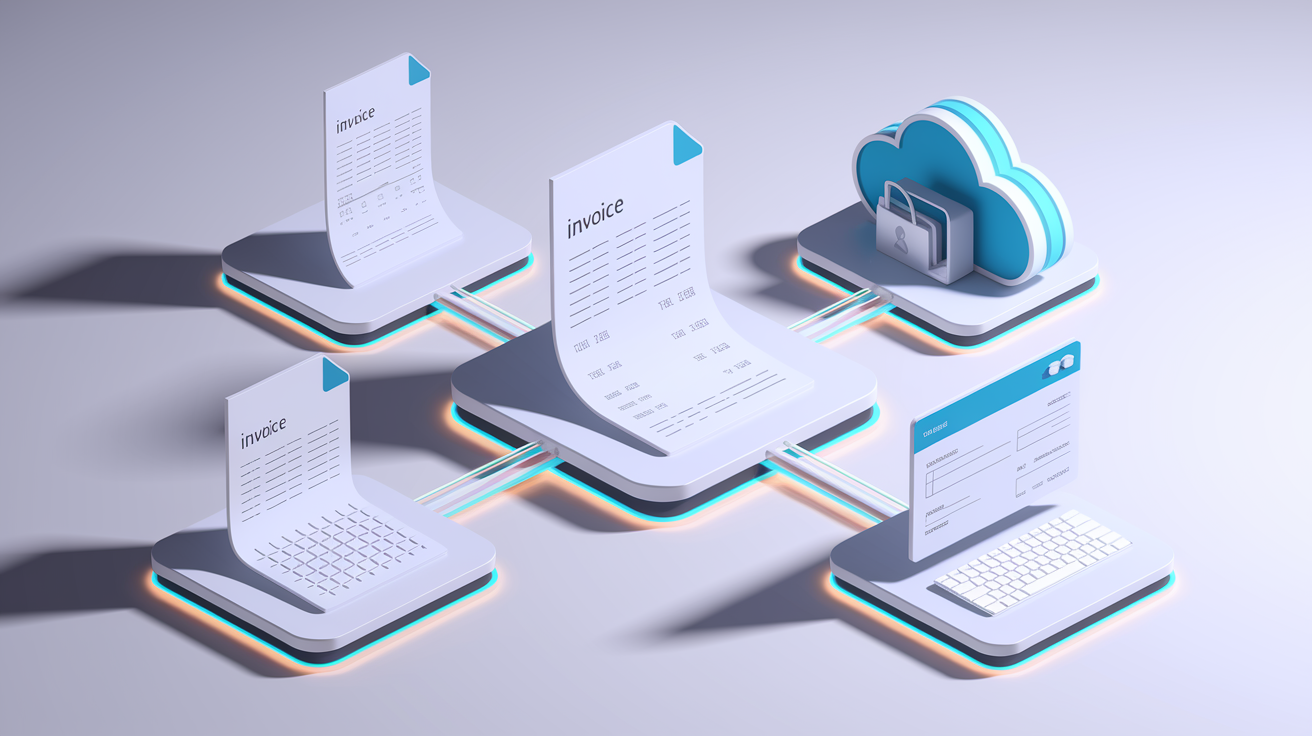
Templates take the guesswork out of invoice creation and let you focus on the numbers instead of layout. A good template includes placeholders for every required field, keeps your branding consistent across jobs, and reduces errors because you’re not building each invoice from scratch. The three most common formats are Microsoft Word, Excel, and PDF. Word and Excel work well during drafting. You can edit client names, update line items, and adjust totals as you go. PDF is what you send. It locks the layout, prevents accidental changes, and displays correctly on any device or email client.
Cloud templates in Google Docs or Sheets are popular because you can access them from your phone, tablet, or laptop. You can share view only links with clients who need a copy before final payment. Accounting software like QuickBooks, Xero, or FreshBooks goes further by auto populating client details, tracking which invoices are paid, and letting you send payment reminders with one click. Web based invoice generators are fastest for one off jobs. You fill in a form, preview the invoice, and download a ready PDF in under five minutes.
PDFs are preferred for final delivery because they preserve your formatting, prevent editing, and attach cleanly to emails without compatibility issues. Once you’ve picked your template format, the workflow is always the same. Fill it in, double check the math, export to PDF, attach to your email, and send it to the client’s billing contact.
Here are five template types contractors use most often:
- Editable Word template for custom branding and one time adjustments
- Excel spreadsheet with built in tax and total formulas
- PDF template that you fill using a PDF editor or print and complete by hand
- Google Docs or Sheets template stored in the cloud for multi device access
- Accounting software template that syncs with your payment and bookkeeping system
Key Components of a Professional Contractor Invoice
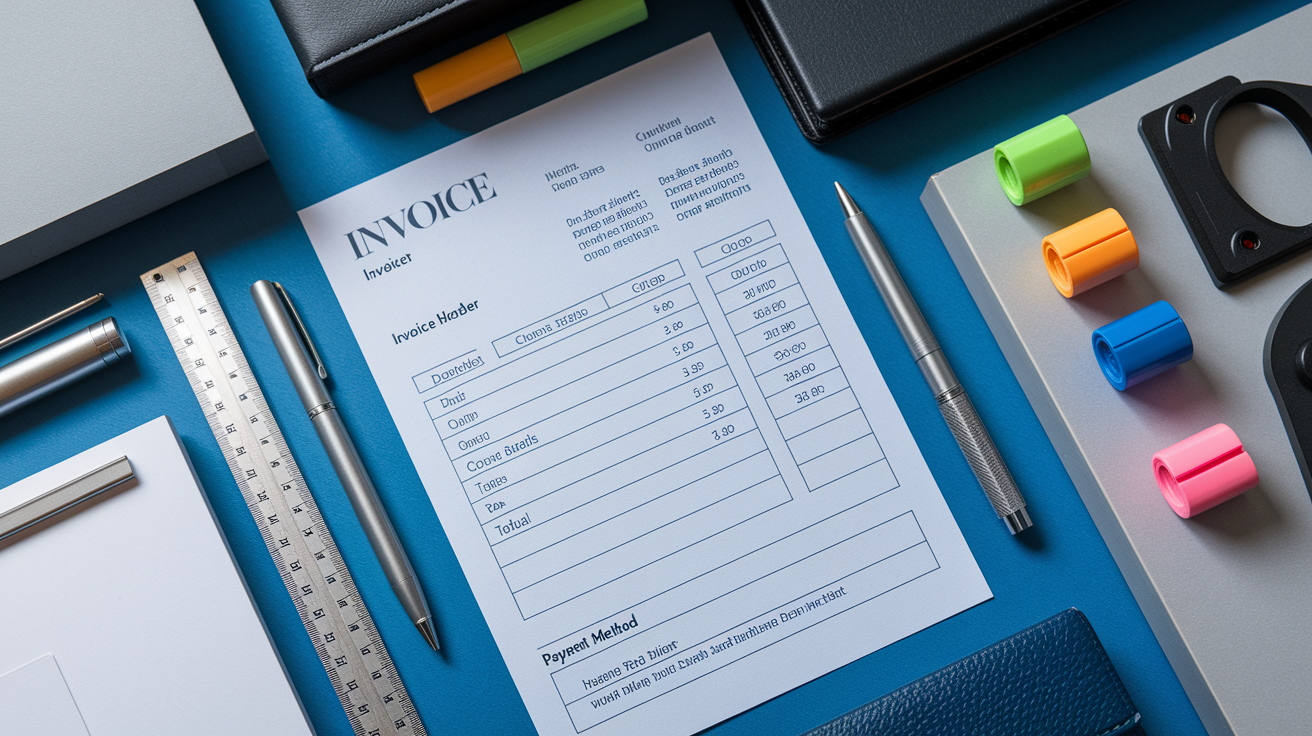
Every contractor invoice needs the same core elements, no matter what format you use or what kind of work you do. These components tell the client who did the work, what got done, how much is owed, and when and how to pay. Missing even one piece can trigger questions, delays, or disputes.
Start with the basics. Label the document “INVOICE” or “TAX INVOICE” at the top so it’s immediately clear what it is. Include your business name, full mailing address including ZIP code, email, and phone number. Add your logo if you have one. It reinforces your brand and makes the invoice easier to recognize. On the client side, list the contact name and position (if applicable), company name, client email, phone, and billing address. If the client gave you a purchase order number or project code, put that near the top so their accounting team can match your invoice to their records.
Next, add the invoice specific details. A unique invoice number (use sequential numbering like 101, 102, 103 to keep records organized), the invoice date (the day you’re sending it), and an explicit payment due date. Don’t write “Net 30” without also spelling out the calendar date. Write “Payment Due April 30, 2025” to eliminate confusion. Include your payment terms (example: “Payment due within 7 days”) and list every accepted payment method. Bank transfer with account details, card, PayPal, or check. If you charge late fees, state the rate and when it applies, like “1% monthly interest on overdue balances after one warning.”
Here are the eight required invoice elements that belong on every contractor invoice:
- Invoice label (“INVOICE” or “TAX INVOICE”) prominently displayed at the top
- Unique invoice number and invoice date
- Explicit calendar payment due date and payment terms
- Your business name, full address, email, phone, and logo
- Client contact name, company name, billing address, email, and phone
- Itemized list of services or products with descriptions, quantities or hours, unit rates, and line subtotals
- Tax lines (if applicable), total amount due, and currency
- Accepted payment methods, bank details if needed, and late fee policy if enforced
Types of Independent Contractor Invoices

Contractors use different invoice structures depending on how they charge for their work. The three most common types are hourly invoices, project based invoices, and retainer or recurring invoices. Each one organizes line items and totals a bit differently to match the billing agreement.
Hourly invoices list the work you did by time period (example: “Design homepage; Hours: 10 hrs; Rate: $75/hr; Subtotal: $750”). You include the date range (example: “Mar 1 to 10”), the total hours worked, your hourly rate, and the line item subtotal. Add tax if applicable, then total everything at the bottom. Hourly billing works well for ongoing services, consulting, or repair jobs where scope changes frequently. Project based invoices use a flat fee tied to a deliverable or milestone. You might write “Website Redesign Phase 1 Complete; Agreed Amount: $1,500” with no hourly breakdown. This format is cleaner when the client approved a fixed price up front and doesn’t need to see how many hours you logged. Retainer invoices bill a recurring amount, often monthly, for a set package of services or for access to your availability. Label it clearly: “Monthly Retainer April 2025; Amount: $2,000.”
| Invoice Type | When to Use It | Example |
|---|---|---|
| Hourly | Consulting, repair work, ongoing support. Client wants to see time logged | 12 hrs × $75/hr = $900; Tax $72; Total $972 |
| Project Based / Fixed Fee | Scope and price agreed up front; deliverable focused work | Website Phase 1; Agreed Amount $1,500; Tax $120; Total $1,620 |
| Retainer / Recurring | Monthly or quarterly billing for a service package or availability block | Monthly Retainer May 2025; Amount $2,000; Auto billed 1st of month |
How to Create an Independent Contractor Invoice

Creating an invoice isn’t complicated once you know the workflow. You gather the details, choose a format, fill in the numbers, apply any taxes, and export the final document to PDF. The method you pick depends on how often you invoice, how complex your billing is, and whether you want automation or full control. Below are five ways to create contractor invoices, each suited to different work styles and client types.
How to Do It With a Template (Option 1)
Templates are the fastest route if you’re billing a handful of clients per month and want full control over layout and wording. Download a Word, Excel, or Google Docs template, save a copy for each new invoice, and fill in the blanks. This approach works well for contractors who invoice sporadically or who want to tweak descriptions and line items for every job.
- Download an editable template in Word, Excel, or Google Docs format
- Save a new copy with a unique filename (example: Invoice101ClientName_April2025)
- Fill in your business details, client details, invoice number, date, and due date
- Add itemized services with descriptions, hours or quantities, unit rates, and line totals
- Calculate tax if applicable and enter the total amount due
- Save the final version as a PDF before emailing it to the client’s billing contact
How to Do It Using Accounting Software (Option 2)
Accounting software like QuickBooks, Xero, or FreshBooks automates invoice creation, tracks payments, and integrates with your bookkeeping. You set up client profiles once, and the software auto fills names, addresses, and payment terms every time you create a new invoice. This method is ideal for contractors who invoice frequently, manage multiple clients, or want payment reminders and cash flow dashboards built in.
- Set up your accounting software and add your business details, logo, and payment settings
- Create a client profile for each payer (name, billing address, email, payment terms)
- Click “New Invoice,” select the client, and enter the invoice date and due date
- Add line items (services, hours, rates) and let the software calculate subtotals and tax automatically
- Preview the invoice, export to PDF, and email directly from the software or download and attach manually
How to Do It Manually From Scratch (Option 3)
If you’re just starting out or only invoice once in a while, you can build an invoice manually in Word, Excel, or even a blank PDF form. This gives you total flexibility over design and wording, but you’ll need to remember every required field and double check your math every time.
- Open a blank Word document or Excel sheet
- Type “INVOICE” at the top in large, bold text
- Add your business name, address, contact info, and logo (if you have one)
- Add the client’s name, company, billing address, and contact details
- Insert a table with columns for Description, Quantity/Hours, Unit Rate, and Line Total
- Number the invoice sequentially (start at 001 or 101), add the invoice date and explicit due date
- Calculate the subtotal, add tax if needed, and show the total amount due
- List accepted payment methods and any late fee policy
- Save the document as a PDF before sending
How to Do It for Hourly or Project Based Work (Option 4)
Hourly and project based invoices use slightly different line item structures. For hourly work, you track time daily or weekly, then list each task with hours, rate, and subtotal. For project work, you reference the agreed deliverable and flat fee, then skip the hourly breakdown unless the contract requires it.
- For hourly: log hours by task or by date range (example: “Design homepage; Hours: 10; Rate: $75/hr; Subtotal: $750”)
- For project based: list the deliverable and agreed amount (example: “Phase 1 Completion; Agreed Amount: $1,500”)
- Include a brief description so the client knows what they’re paying for
- Add reimbursable expenses as separate line items if your contract allows (example: “Hosting fee: $45; Receipt attached”)
- Calculate tax on labor and any taxable expenses, then total everything at the bottom
How to Do It for Retainers or Recurring Billing (Option 5)
Retainer and recurring invoices are issued on a set schedule. Monthly, quarterly, or per billing cycle for an agreed service package or availability block. Many contractors automate these invoices using accounting software or subscription billing tools so the invoice goes out automatically on the same day each period.
- Set up a recurring invoice schedule in your accounting software or payment processor
- Define the retainer amount, billing frequency (example: 1st of every month), and service description
- Auto populate the invoice number, date, and due date based on the schedule
- Send the invoice automatically via email or let the software charge a saved payment method
- Track which periods are paid and which are overdue in your accounting dashboard
Comparison of Contractor Invoice Elements and Billing Models

Different billing models require slightly different invoice structures, but the core elements stay the same. Hourly invoices emphasize time tracking and per hour rates. Project based invoices focus on deliverables and flat fees. Retainer invoices bill a recurring amount with minimal line item detail. Understanding how each model uses the same fields differently helps you pick the right template and avoid confusion when switching between clients or job types.
Payment terms also vary by model. Hourly and project based work often use Net 15 or Net 30 terms, meaning payment is due 15 or 30 days after the invoice date. Retainers are usually billed in advance or on the first of the month, with immediate or Net 7 payment expectations. Deposits and partial payments are common in project based and retainer arrangements. You invoice a percentage up front, then invoice the balance at completion or on a milestone schedule.
| Category | Hourly Billing | Project Based | Retainer |
|---|---|---|---|
| Line Item Detail | Task description, hours logged, hourly rate, subtotal per task | Deliverable name, agreed flat fee, brief scope reference | Service package description, recurring amount, billing period |
| Payment Terms | Net 15 or Net 30; payment due X days after invoice date | Net 15, Net 30, or milestone based; often 50% up front, 50% on delivery | Net 7 or immediate; often auto billed monthly or quarterly |
| Invoice Frequency | Weekly, biweekly, or at project close | At milestone completion or project delivery | Monthly, quarterly, or per billing cycle |
| Tax Application | Applied to labor hours and any reimbursable expenses | Applied to total project fee and taxable expenses | Applied to retainer amount if services are taxable |
| Common Use Cases | Consulting, repair, ongoing support, subcontractor time tracking | Website builds, renovations, design projects, installations | Monthly marketing, ongoing IT support, subscription coaching |
How to Use an Independent Contractor Invoice Effectively

An invoice is only useful if it gets sent, tracked, and followed up on. The most organized invoice template won’t help if it sits on your desktop for two weeks or gets sent to the wrong contact. Effective invoicing means issuing invoices immediately after work is done, keeping backup copies, tracking payment status, and following up quickly when clients miss the due date.
Timing matters. Issue the invoice the same day you complete the work or reach a billing milestone. Waiting even a few days stretches the payment cycle and increases the chance the client forgets details or questions your charges. Save every invoice as a PDF and store a copy in a dedicated folder on your computer or cloud drive. If you’re using accounting software, it will store copies automatically, but double check that backups are enabled. Retain all invoices for at least three years to support tax reporting, especially for 1099-NEC and 1099-K forms.
- Issue invoices immediately after work is completed or a milestone is reached
- Save every invoice as a PDF and keep a backup copy in a dedicated folder or cloud drive
- Use sequential invoice numbering (example: 101, 102, 103) to keep records organized
- Track payment status in a spreadsheet or accounting software so you know which invoices are outstanding
- Send a polite payment reminder immediately after the due date is missed
- Follow up again one week later, then weekly until payment is received
- Retain all invoices and receipts for at least three years to support tax records and 1099 reporting
Final Words
Pull a template and get paid faster. This post gave ready-to-use templates and showed why formats like PDF, Word, and Excel matter.
You’ll find a quick look at pros and cons, the main invoice types (hourly, project, retainer), the key components, step-by-step creation options, billing comparisons, and tips to use invoices to keep cash coming in.
Pick the format that matches your workflow, set clear terms, and follow up. A tidy independent contractor invoice plus a simple follow-up plan will speed payments and steady your cash flow.
FAQ
Q: How to invoice as an independent contractor?
A: Invoicing as an independent contractor means sending a clear bill after work is done that states the amount, due date, payment methods, and contact info; send as a PDF or through invoicing software for tracking.
Q: Do independent contractors issue invoices? Can self-employed issue an invoice?
A: Independent contractors and self-employed workers do issue invoices to request payment and document work; invoices support tax records and prove income, so use them for every client, even small jobs.
Q: What are the IRS rules for independent contractors?
A: The IRS rules for independent contractors require reporting all income (even without a 1099), paying self-employment tax, making estimated tax payments, and keeping invoices and receipts for deductions and audits.